



"Within an afternoon our first slide was on the screen. The templates are a huge time-saver and everything stays neatly in our branding."
 Sander MeijerMarketing, De Boshoeve
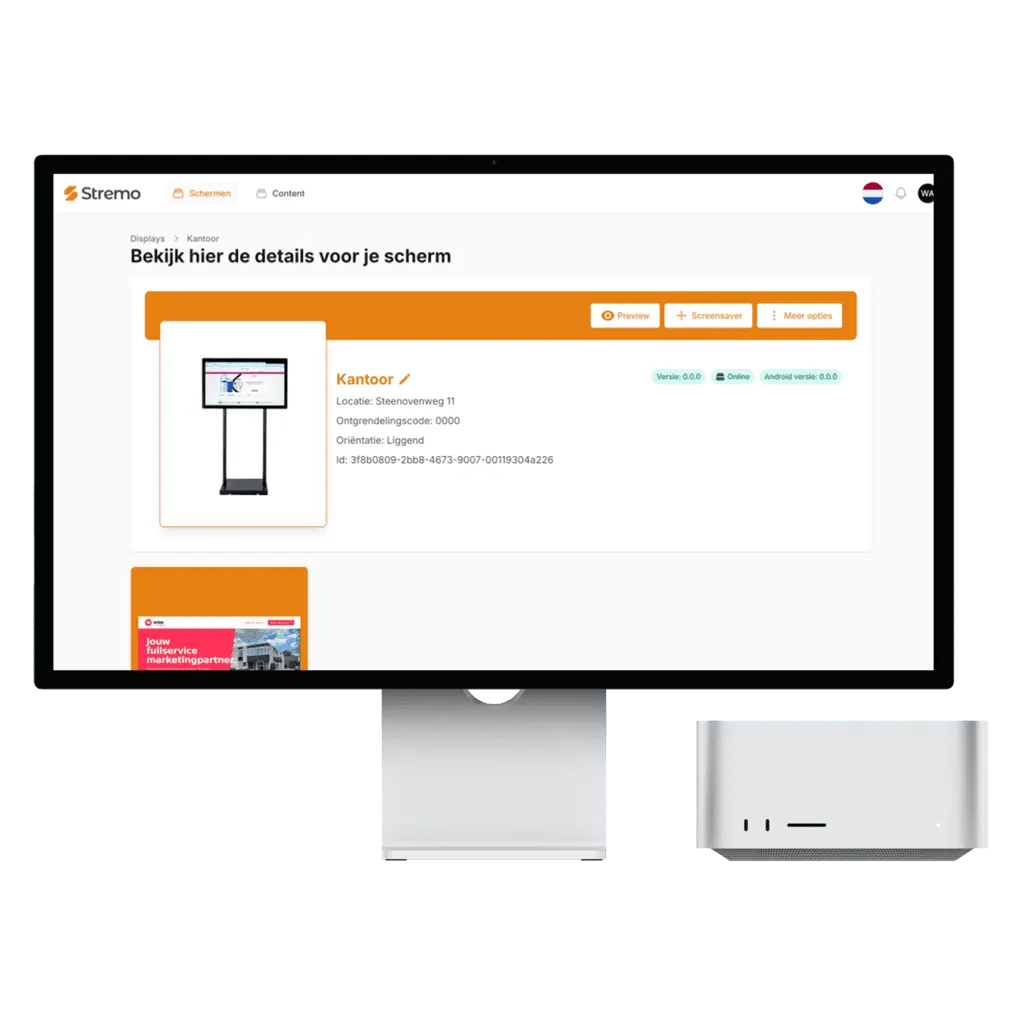
A Chromecast with Google TV fits behind any screen with an HDMI port, costs just a few dollars, and is set up in a few minutes. That makes it the most popular way to turn existing screens into Stremo screens, especially across multiple locations.

Connect the Chromecast to the HDMI input and a power outlet, join it to Wi-Fi, and install the Stremo app from the Play Store. When it starts, a pairing code appears that you enter in your dashboard. After that, your screen is live right away.
More and more TVs come with Google TV already on board. On those you install the Stremo app directly and no longer need a separate streamer. So you choose per screen what's most convenient: built in, or with a Chromecast behind it.
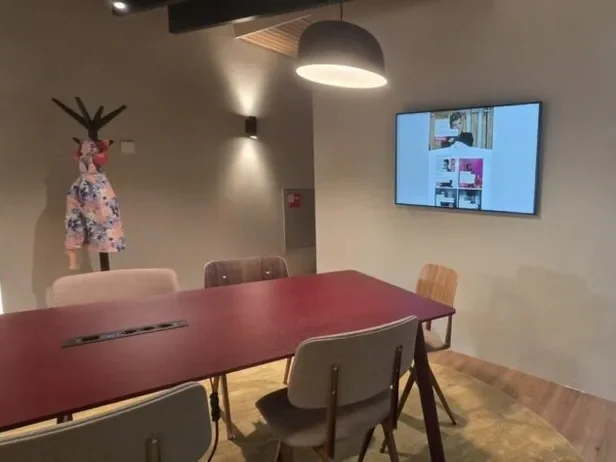
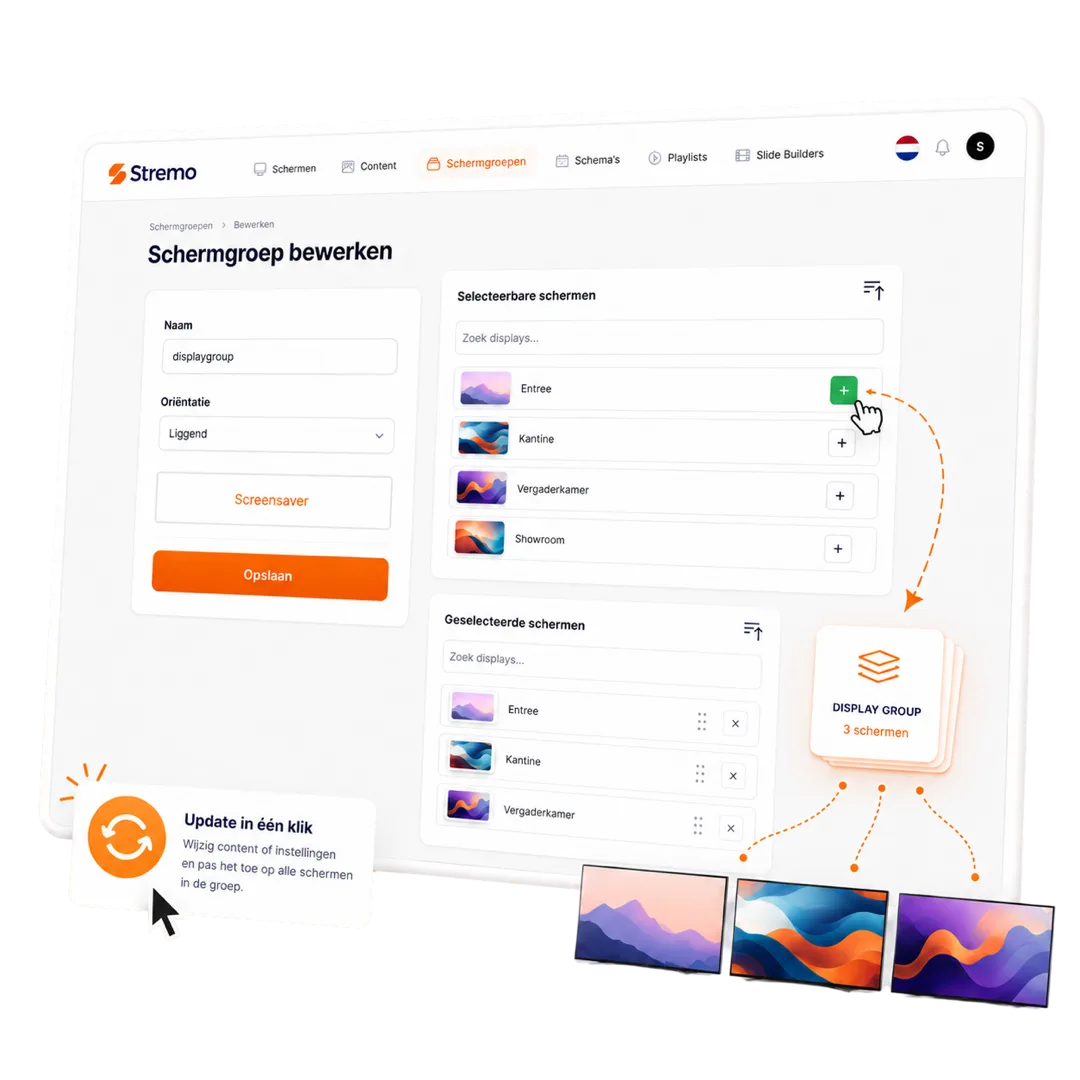
The Chromecast is especially handy across multiple locations: you ship each location a streamer, they plug it in and enter the pairing code. In your dashboard you put the screens per location into a screen group, so you publish centrally and deviate per location where needed.
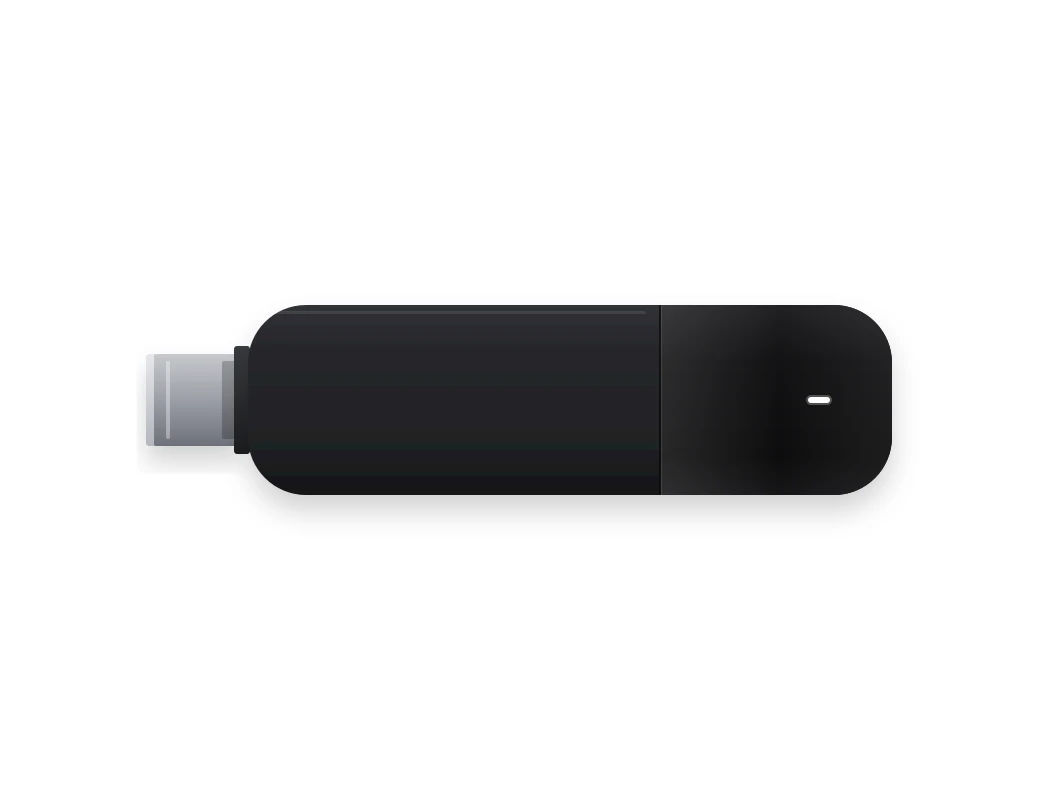
Don't want to pick and set up a device yourself? We supply the Stremo Player: a preinstalled player for the HDMI port of any screen. Plug it in, enter the pairing code, and you're done. A one-time $99, or $149 with ethernet, and with the same capabilities as any other platform.
With a streamer behind a screen that was already mounted, these businesses were live the same day.
"Within an afternoon our first slide was on the screen. The templates are a huge time-saver and everything stays neatly in our branding."
Sander MeijerMarketing, De Boshoeve"I had no design experience at all, but the drag-and-drop is self-explanatory. We now update our offers ourselves every day."
 Rianne VermeulenOwner, Café Central
"The real-time widgets are worth their weight in gold. The weather and our social feed stay automatically up to date on every screen in the venue."
 Jesse BakkerOperations, FitClub Noord
"Great that we could reuse our existing Canva designs. We didn't have to start over and were live quickly."
 Tom de KoningCommunications, Gemeente Velp
"With the playlists our content runs in exactly the right order. I set it once and never think about it again."
 Nina GrootMarketing, Wellnessresort Duinzicht
"Thanks to the user roles, each location can manage its own screen while we keep central oversight. Ideal."
 Bas WillemseIT management, RetailPunt
"With the monitoring I immediately see when a screen goes offline. Before, I'd find out far too late."
 Arjen de WitFacilities, Onderwijsgroep Zuid
"All our photos and videos are neatly organized in the media library. Finding and reusing them is effortless now."
 Ramon SilvaContent, Sporthal De Kamp
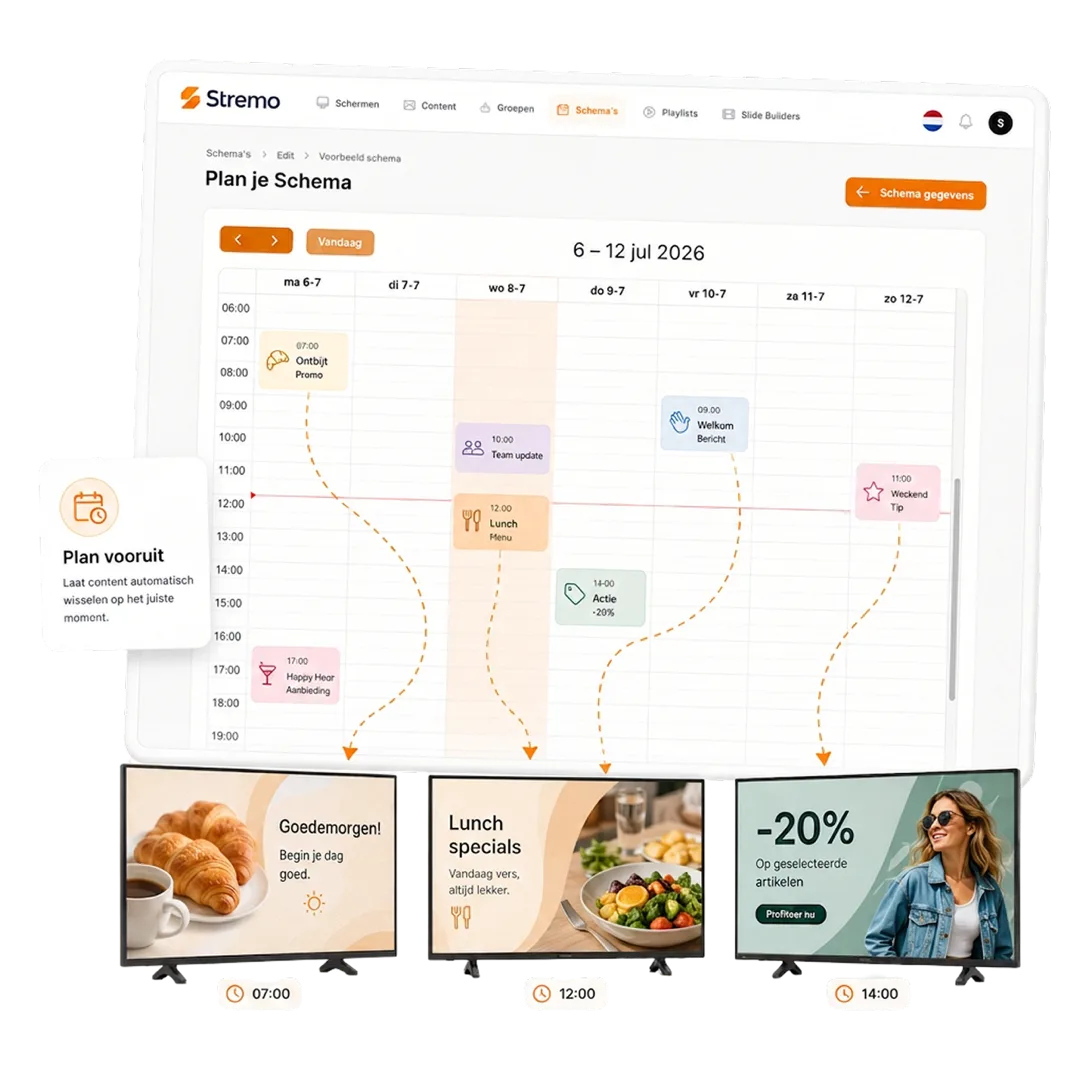
"Scheduling content by time of day works just like a calendar. Something different in the morning than in the afternoon, fully automatic."
Ivo JansenManager, Grand Hotel Central"The integrations with our existing tools saved us a huge amount of work. Everything talks to each other without any hassle."
Jeroen MaasDirector, Bouwbedrijf Terra
Our narrowcasting software is always tailored, so we deliver a solution that fits your needs. All prices exclude hardware.
For businesses that want a simple start with narrowcasting.
Features
For businesses that want to get the most out of their narrowcasting.
Basic plan plus
More options and flexibility for your narrowcasting environment.
Plus plan plus
Didn't find your answer? Our team is happy to help.
Get started today
Discover how easy narrowcasting can be. Stremo helps businesses make information visible. Without the hassle.




Download the free Stremo brochure with real-world examples, all the possibilities, and a clear pricing overview.