Sep 24, 2026
Can I use my existing TV for narrowcasting?
Can you use your existing TV for narrowcasting? Often, yes. Discover how Stremo turns any screen with HDMI into an information display.
Anyone looking to get started with narrowcasting often assumes it requires expensive, specialized screens. Good news: in most cases you can simply use your existing TV for narrowcasting. In this article we explain which TVs are suitable, how to connect them, and what to look out for before you go live.
The short answer: yes, usually
Do you have a TV or screen with an HDMI port and internet nearby? Then you can almost always run narrowcasting on it. So there's no need to replace your current screen right away. With the right software and one of the three connection methods below, you'll be showing your first content within a few minutes. For exactly how it works, see how it works.
Which TVs are suitable for narrowcasting?
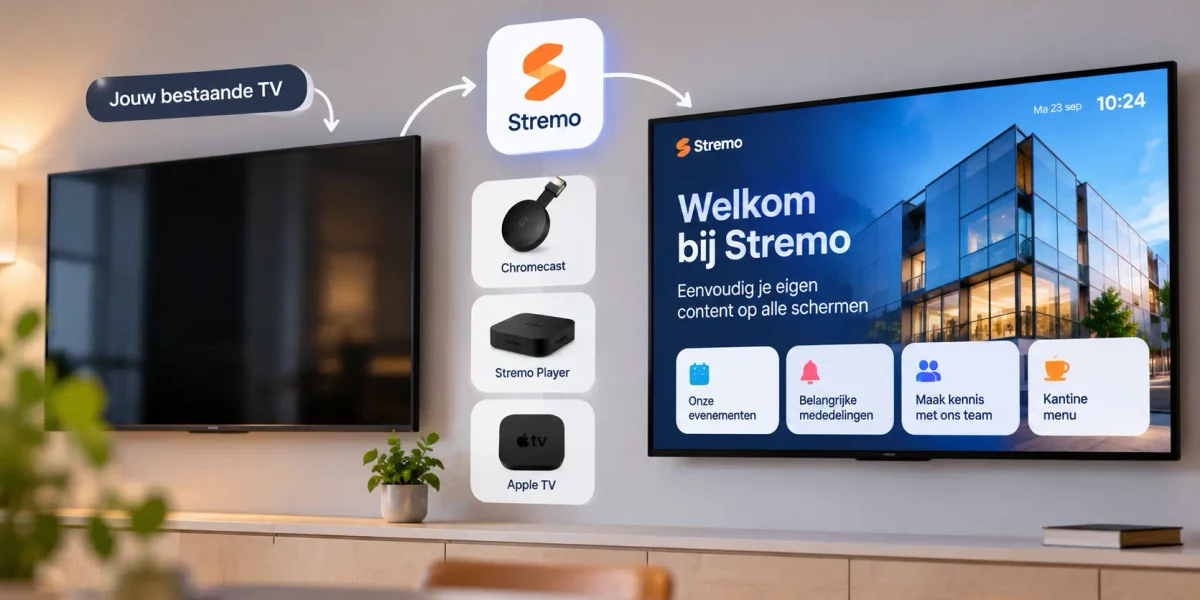
The basic requirements are simple: a screen with an HDMI port and an internet connection (Wi-Fi or network cable). Almost every modern TV meets them. If you have a smart TV, you can often even install the narrowcasting app directly on the TV, without any extra equipment. An older TV without smart features works just fine too, as long as you connect a small player to it.
Three ways to connect your TV
1Directly on your smart TV
The simplest way: install the app directly on your smart TV. You won't need any extra hardware, the screen pulls the content in itself over the internet. Ideal if you already have a suitable smart TV on the wall.
2With a Stremo Player
Can't your TV run the app? Then you use the Stremo Player, a small box that you connect to the TV via HDMI. You buy it once for $99 (Wi-Fi) or $149 (ethernet) and it arrives ready to go (preconfigured): just plug it in and you're done. That's how you turn any TV with HDMI into a full-fledged narrowcasting screen.
3Through a Chromecast or Apple TV
Already have a Chromecast or Apple TV at home? Then you can install the Stremo app right on it, without buying any new equipment. Handy if you want to reuse existing hardware.
What to watch out for
So technically it's almost always possible, but keep a few practical points in mind when choosing:
- Internet connection: a stable Wi-Fi or network connection near the screen is important for reliable playback.
- Usage hours: a consumer TV is built for a few hours a day, not necessarily for running from early morning to late at night.
- Static images: with content that has a lot of fixed elements (such as a logo in the same spot), cheaper screens can develop burn-in over time.
- Orientation: if you want to mount the screen vertically (portrait), check whether your TV and bracket allow it.
Consumer TV or professional display?
A regular TV and a professional display technically do the same thing, but they're built for different uses. Here are the main differences at a glance:
- Usage hours: a consumer TV is generally intended for a few hours a day; a professional display is built to stay on 16 to 24 hours a day without issues.
- Brightness: professional displays are usually brighter, so your content stays clearly legible even in a bright room or near a storefront window.
- Burn-in: professional screens are more resistant to fixed image elements (such as a logo in the same spot), which a cheap TV can start to suffer from over time.
- Portrait mode: if you want to mount the screen vertically, a professional display is often officially rated for it; not every consumer TV is.
- Warranty: professional screens typically come with a commercial warranty suited to intensive use.
An honest trade-off: for a pilot, a temporary promotion, or a screen that's only on part of the day, an existing TV is often perfectly fine. Will your screen eventually run all day in a busy, high-visibility spot? Then a professional display often earns the investment back in reliability and lifespan. You don't have to make that choice now: start with what you have and scale up when usage calls for it.
What does it cost to get started?
Starting with your existing TV keeps costs low. Roughly, count on these components:
- Your current TV: reusing it costs you nothing extra.
- Player (if needed): a Stremo Player costs $99 one-time ($149 with ethernet); a Chromecast you already own can be reused for free.
- Software: a free entry-level version to try it out, or the Basic plan for $10 per month per screen; for multiple screens there's a Multi plan available on request.
By comparison, a new professional display quickly runs into the hundreds of euros. By starting with your existing TV, you can try narrowcasting first without a big investment and only scale up later. If you want a more concrete picture of your monthly costs, use the price calculator.
Checklist: is your TV suitable?
Run through these points before you begin:
- Does your TV have a free HDMI port?
- Is there internet (Wi-Fi or network cable) near the screen?
- Is it a smart TV (app directly), or do you need a player/Chromecast?
- How many hours a day will the screen be on?
- Is the screen in a bright spot where extra brightness would help?
Can you answer the first three questions with "yes"? Then you can almost certainly get started with your current TV today. Not sure? Take the quick check below.
Is your TV suitable?
Result
Answer the three questions to see whether you can get started right away.
How to connect your TV with Stremo
Getting your screen live is quick: create an account pair your screen through the app or a player, get your content ready, optionally with integrations to your own sources, and publish. Your changes appear on the screen within seconds, and you manage everything remotely from your browser. That way you can test risk-free whether narrowcasting works on your current TV, and whether you like it. Curious which solution fits your industry? We're happy to help you with that.
Frequently asked questions
Does narrowcasting work on every TV?
On just about any TV with an HDMI port and internet, yes. On a smart TV you often install the app directly; on a TV without smart features you use a small player, such as the Stremo Player or a Chromecast. Only very old TVs without HDMI aren't suitable.
Does my TV have to be on all day?
It can be, but it doesn't have to be. With daily and weekly schedules you can set the screen to show content only during opening hours. If your screen ends up running consistently from early to late, keep the usage hours of a consumer TV in mind and consider a professional display down the line.
Do I need an expensive computer or player?
No. A smart TV needs no extra device at all. If your TV can't run the app, an affordable player such as the Stremo Player (from $99 one-time) or a Chromecast you may already have will do the job. A separate PC isn't needed.
Can I control multiple TVs at once?
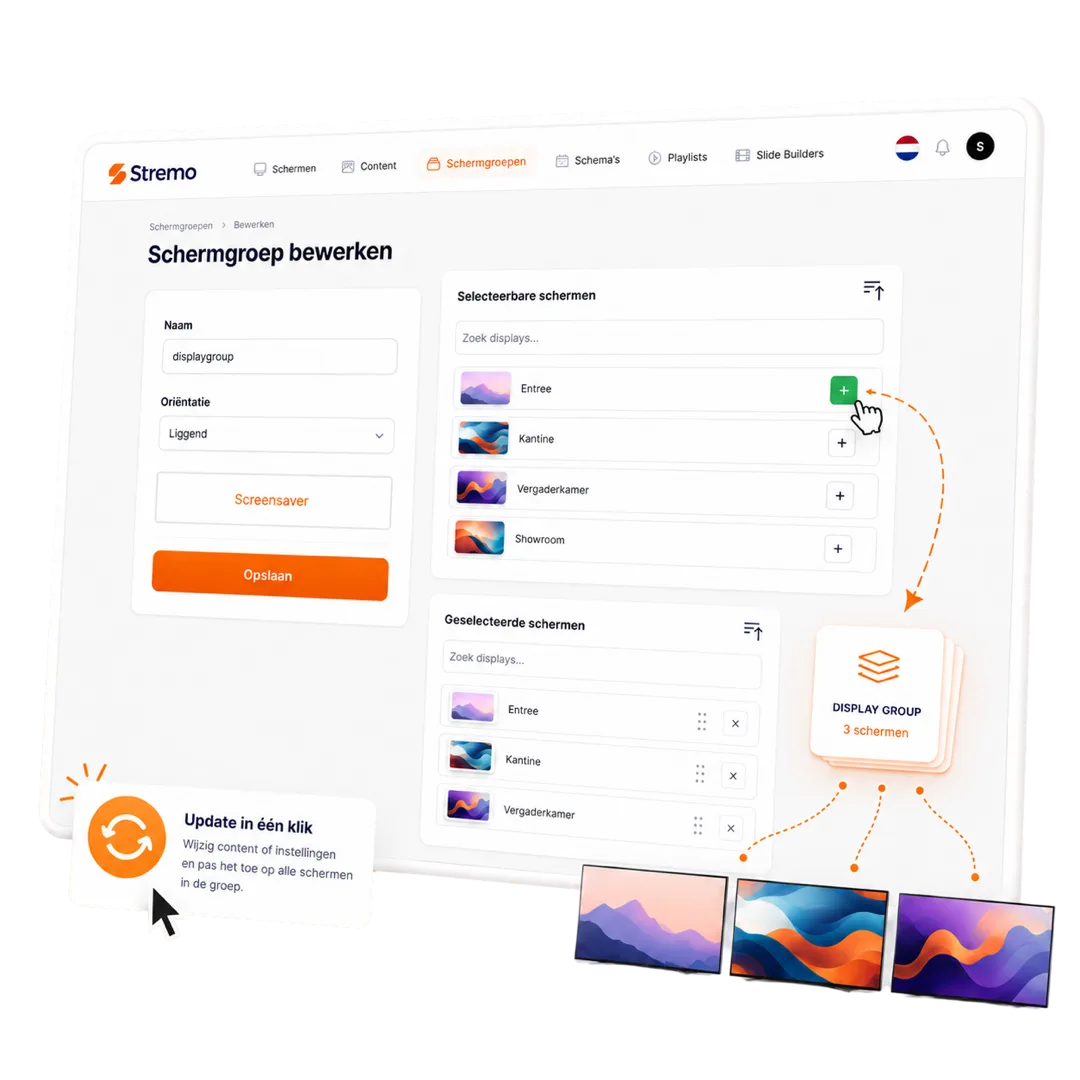
Absolutely. You manage all your screens centrally from one dashboard, whether they're in the same location or spread across multiple sites. You decide per screen what appears, which is handy when not every location needs the same content.